

Chrome extension
The xopc Chrome extension adds a compact Chat experience to the browser and can, when you explicitly allow it, share or control the current page. It uses the same persistent Sessions as the desktop and web console, so a conversation can continue across surfaces.
The extension requires a running xopc Gateway. It does not call a model directly when the Gateway is offline.
What is included
- Persistent conversations, recent Session selection, streaming responses, stop, retry, and recovery after the side panel is closed and reopened.
- Markdown, code blocks, links, copy actions, tool activity, errors, and questions needed to complete a turn.
- Files, screenshots, PDFs, the current page, selected text, and explicit tab mentions as conversation context.
- Browser control through the authenticated Gateway Realtime connection.
- Light and dark themes aligned with the Gateway console.
- English and Simplified Chinese UI, selected automatically from Chrome's UI language.
The side panel intentionally contains fewer management features than the full Gateway console. Configure Agents, models, tools, remote access, and advanced browser policy in the desktop or web console.
Chrome selects the extension language from its own UI language setting. English is the fallback for browser languages that do not yet have a translation. Reload the extension after changing Chrome's language.
Install from the desktop or web console
The shortest path for a new device is Settings → Device access → Connect browser extension. The guided flow downloads a portable extension archive before it starts the 10-minute invitation timer. Unzip it, open chrome://extensions, enable Developer mode, and choose Load unpacked with the extracted xopc-browser-extension folder.
For a same-computer installation with automatic local discovery:
- Start the Gateway.
- Open Settings → Browser.
- Enable browser control and select Chrome extension.
- Select Install extension files. xopc prepares a stable extension directory and the local discovery host.
- Select Open extensions, enable Developer mode, and choose Load unpacked.
- Select the directory shown by xopc. The default command-line installation is
~/.xopc/bin/browser-ext; select this directory itself, not itsdistsubdirectory. - Pin xopc if desired, then select its toolbar icon to open the side panel.
Chrome does not permit ordinary applications to silently install an unpacked extension. The one-time Load unpacked action is therefore required outside Chrome Web Store or enterprise-policy distribution. Electron and Gateway startup can prepare and repair the files, but cannot bypass this browser boundary.
Ask questions while reading a page
After installing and connecting, try the MDN introduction to asynchronous JavaScript. Keep the source on the left and the xopc conversation on the right so you can check explanations against the original.
These screenshots show the Chinese UI. The Gateway was offline when they were captured, so they show attached context and question drafts, not submitted questions or generated answers. Connect the side panel to your Gateway before sending a question.
Attach the current page
- Open the page you want to read and select xopc in the Chrome toolbar.
- Select + beside the message box, then the current-page option (当前页面 in the screenshots). Allow access to the current site if Chrome asks.
- Check that the page title and domain appear above the message box, then enter and send your question.
For example: “I know basic JavaScript. Using this article, explain what problem asynchronous programming solves and which section I should read first.”
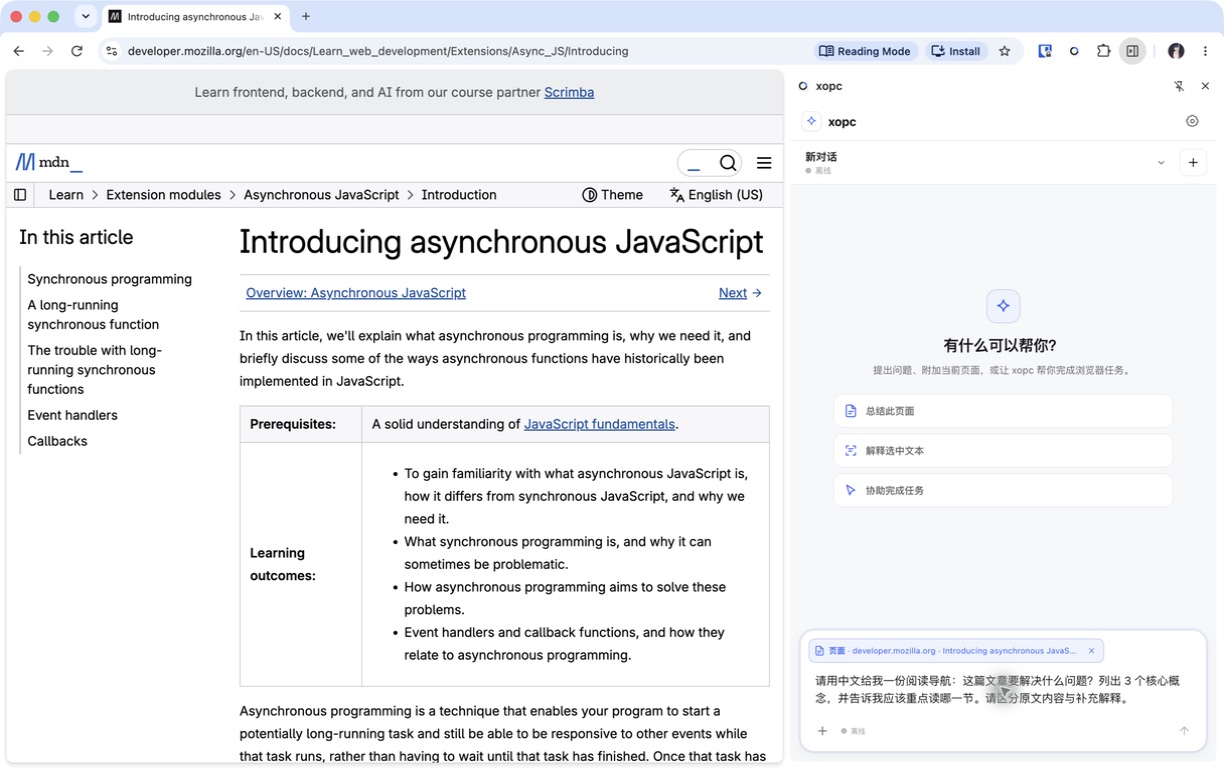
Check the attached source above the message box before sending to make sure you have selected the intended article.
Ask about a selected passage
- Select a passage on the page.
- Select +, then the selected-text option (选中的文本 in the screenshots). Check that the source label identifies the selection.
- Ask a specific question, such as: “Explain this passage using a restaurant-ordering example, and point out where the analogy breaks down.”
You can also right-click selected text and choose Ask xopc about “…”. The selection is attached to the side-panel draft, including when the panel is already open. This route uses Chrome's selected text directly, so it does not need to read the page to recover the selection.
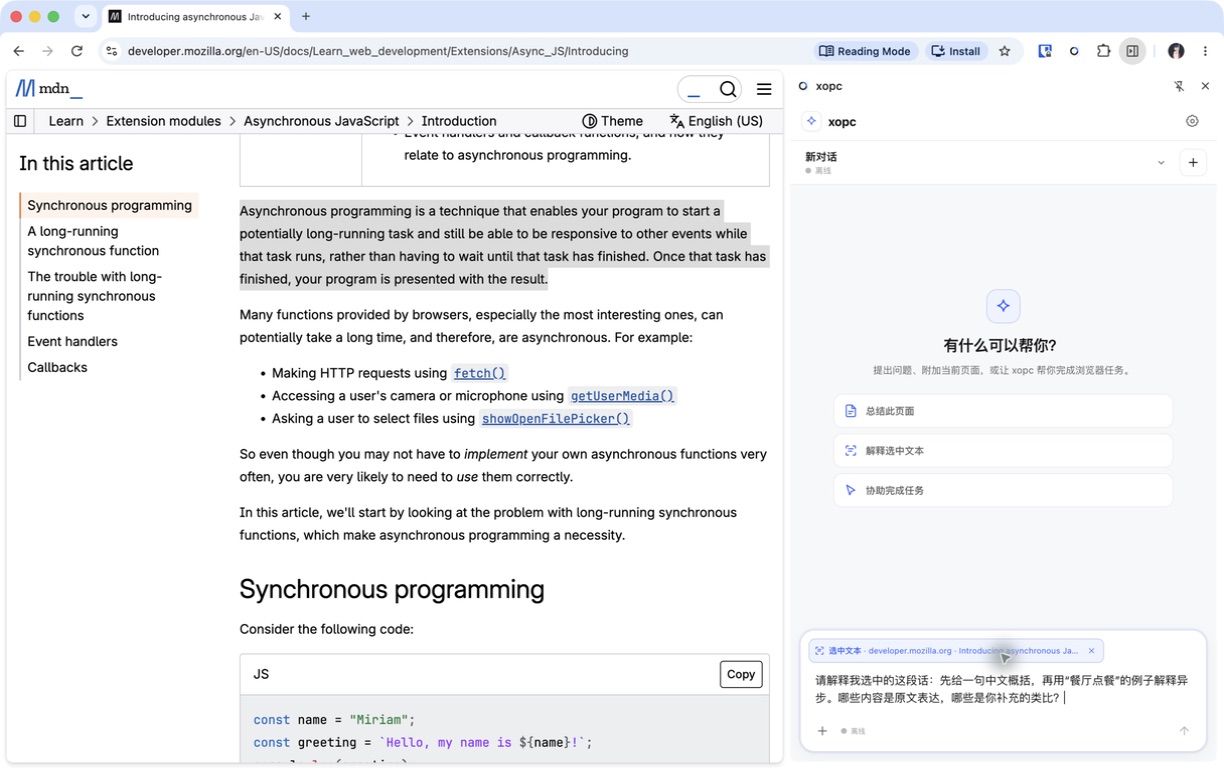
Attaching a selection shares the selected text. Attach the current page as well when your question needs the surrounding context.
After reading, continue in the same conversation: “Turn what we discussed into three study notes and include the source link.” The notes appear in the conversation for you to copy and save.
Install from the command line
xopc browser extension install
xopc browser extension doctor
xopc browser doctorThe install command prints the exact extensionDir. Load that directory from chrome://extensions. A healthy result has:
installed: true;- a valid
extensionDir; nativeHost.installed: trueon supported local systems;- no
needsRefreshorneedsChromeReloadindication.
Automatic local discovery is currently installed for Chrome, Chrome for Testing, Chromium, Microsoft Edge, and Brave on macOS and Linux. On Windows, installation creates a .cmd launcher and registers the Native Messaging host for Chrome, Chromium, Edge, and Brave in the current user registry (HKCU), without administrator privileges. If Connect local Gateway reports Specified native messaging host not found, run xopc browser extension install as the same Windows user running the browser, then confirm xopc browser extension doctor reports nativeHost.installed: true and retry.
Development checkout
Build before copying the extension so the installed directory never receives stale or incomplete assets:
pnpm install
pnpm -C packages/browser-ext run build
pnpm run dev -- browser extension install
pnpm run dev -- gatewayThen load the extensionDir reported by the install command. After changing extension code:
pnpm -C packages/browser-ext run build
pnpm run dev -- browser extension installOpen chrome://extensions, find xopc, and select Reload. Refresh any page that was already open before testing page capture or control.
pnpm run pack:browser-ext creates a distributable archive and also builds the extension, but it is not required for the normal development loop. pnpm run sync:browser-ext-version is part of the release flow; it is not a substitute for rebuilding or reloading the extension.
Local automatic connection
On a supported local installation, opening the side panel normally connects without a pairing code or Gateway approval:
- Gateway startup installs or repairs the fixed extension directory and the
ai.xopc.browserNative Messaging manifest. - The extension generates a non-exportable P-256 device key.
- The native host discovers only the local loopback Gateway and requests a short-lived, one-time enrollment bound to the fixed extension ID and key fingerprint.
- The extension verifies the Gateway signature, stores a scope-limited device credential, and opens an authenticated Realtime connection.
Native Messaging is used only for local discovery and enrollment. It does not carry chat messages, page contents, owner tokens, or long-lived credentials, and it does not remain running as a proxy.
Selecting Disconnect revokes the browser device, clears its credentials, key, pending outbox data, and disables automatic reconnection. Select Connect local Gateway to opt in again.
Remote or self-hosted Gateway
A Gateway running on another computer or server does not receive local auto-approval. This is intentional: a website, remote server, or forged localhost response must not be able to enroll a browser silently.
- Expose the Gateway through a protected route such as Tailscale or HTTPS. See Remote access.
- Open Settings → Device access → Connect browser extension in the Gateway owner interface.
- Copy the one-time invitation shown by Device access.
- Open the xopc side panel in Chrome, paste the invitation into One-time invitation, and select Connect. Gateway access uses the permissions granted during extension installation.
- Return to Device access, compare the confirmation code, and approve the request.
The extension uses its installation permissions to reach the selected Gateway origin. Keep the browser online while using the extension driver. For unattended server automation, prefer Playwright or a configured remote browser instead of depending on a user's Chrome session.
Page and site permissions
The extension declares website access during installation so ordinary use does not prompt for each site, screenshot, or Gateway connection. Chrome can still restrict site access in extension settings.
| Action | Permission behavior |
|---|---|
| Chat without page context | Does not read the current page |
| Attach current page or selection from the side panel | Uses installation permissions without another prompt |
| Ask about selected text from the context menu | Uses Chrome's selection without requesting page access |
| Mention another tab | Uses installation permissions without another prompt |
| Attach/control the current tab | Use this tab creates a control binding in one action; no read/control choice is required |
| High-impact action | Executes directly without per-action approval |
The manifest declares <all_urls> host access for page reading, screenshots, and Gateway connections. Chrome internal pages, the Chrome Web Store, extension pages, and other restricted schemes cannot be read or controlled.
Page text is captured only after an explicit action. Password fields, one-time codes, payment fields, forms, scripts, and hidden content are excluded from the basic page snapshot. If the main page has no text, xopc tries a permitted embedded frame. A selected passage can come from a permitted frame or an ordinary text field. Captured page content is treated as untrusted input and cannot grant itself additional permissions.
If Chrome returns no readable page text, the side panel offers Attach screenshot. This captures only the visible tab after you select it; it does not extract a full PDF, video transcript, or hidden content.
Updates
xopc keeps the unpacked extension at a fixed path. A Gateway or desktop update can replace the files in that directory without requiring Load unpacked again.
Chrome does not automatically reload an unpacked extension after its files change. If Settings → Browser reports a version mismatch or Reload extension:
- Open
chrome://extensions. - Find xopc and select Reload.
- Refresh tabs that xopc should read or control.
- Return to Settings → Browser and run the connection test.
The extension manifest version is synchronized with the core xopc version during release:patch, and the production build verifies that the side panel, background service worker, manifest, and required assets are present.
Troubleshooting
The side panel is blank
Run
xopc browser extension doctorand verifyinstalled: true.Confirm that Chrome loaded the directory containing
manifest.json, notdist/.Reinstall the files, reload the extension, and reopen the side panel:
bashxopc browser extension installIn development, build the extension before running the install command.
Inspect the extension service worker from
chrome://extensionsfor an initialization error.
The extension says it is waiting for approval
- A same-machine macOS/Linux installation should normally auto-enroll. Run
xopc browser extension doctorand repair the native host withxopc browser extension install. - Make sure the running Gateway and the install command use the same xopc profile, state directory, and config path.
- Remote and server Gateways always require the owner to approve the pairing request.
- If Disconnect was selected previously, automatic enrollment remains disabled until Connect local Gateway is selected.
Chrome reports “Extension manifest must request permission to access this host”
Current releases declare website access at installation and do not request origin permissions during page actions. If this message appears:
- Update xopc and reinstall the extension files.
- Reload xopc from
chrome://extensions; an older loaded service worker may still be running the previous manifest. - Open the extension's Details → Site access and make sure access is not blocked for the site. Use On all sites to avoid manual site access steps.
- Refresh the target page and try Attach page again.
- Confirm the page is a normal
http://orhttps://page, not a Chrome internal or Web Store page.
A capture failure does not revoke site access. If Chrome blocks a site, adjust extension site access and retry.
The assistant reports DRIVER_UNAVAILABLE
xopc browser extension doctor
xopc browser doctorThen open Settings → Browser and run the connection test. Check, in order:
- Browser control is enabled and the selected driver is Chrome extension.
- Extension files and the native host are current.
- The xopc side panel has been opened and shows the expected Gateway.
- Chrome and the Gateway report the same extension protocol/version; reload Chrome when requested.
- The target site permission has been granted if the operation reads or controls a page.
xopc v0.0.268 fixed a case where an unbound browser action added target: undefined, failed strict argument serialization, and was misleadingly reported as DRIVER_UNAVAILABLE. If logs contain Canonical JSON does not support undefined, update the Gateway to v0.0.268 or newer and restart it.
Chat works but browser control does not
Chat and browser control share the Gateway but use different authorization checks. Verify the extension status says Gateway Realtime, the browser endpoint is connected, and the current Session is explicitly attached to the intended tab. Granting site access alone does not attach a Session. Browser actions run directly once the Session has tab control.
Questions and microphone access
The side panel automatically answers Gateway approval clarifications and continues the task. Repeated events use an idempotent response, and ordinary questions still appear for the user to answer. Browser actions have no per-action approval cards.
Voice input uses Chrome's microphone consent. If Chrome cannot show the prompt in the side panel, opening the microphone authorization page starts the system request immediately; there is no additional xopc authorization button to click before the request.
Security summary
- The extension UI and scripts are packaged locally; the Gateway does not provide remote executable code.
- Gateway access uses a scope-limited browser device credential; Realtime browser control also requires a signed endpoint identity and short-lived turn token.
- Local auto-enrollment is limited to a fixed extension ID, loopback Gateway, native issuer, key fingerprint, nonce, and short lifetime.
- Remote/self-hosted enrollment accepts only a signed, short-lived invitation copied from Device access and still requires owner approval with a matching confirmation code.
- Website access is granted at installation; page content remains untrusted data.
- Current-tab control requires a Session binding and remains subject to URL and upload path restrictions. Browser actions execute without approval cards.
For reusable browser tasks, continue with Browser automations. The implementation and threat model are recorded in the repository's Chrome extension Side Panel design.
Record and replay
The extension side panel offers browser recording: select a website, start or pause recording, finish saving, then inspect inputs and test replay. This requires a recording-capable extension and compatible Gateway. See Browser automations for the steps and boundaries.